
Pomera DM250
Pomera DM250 tech specs
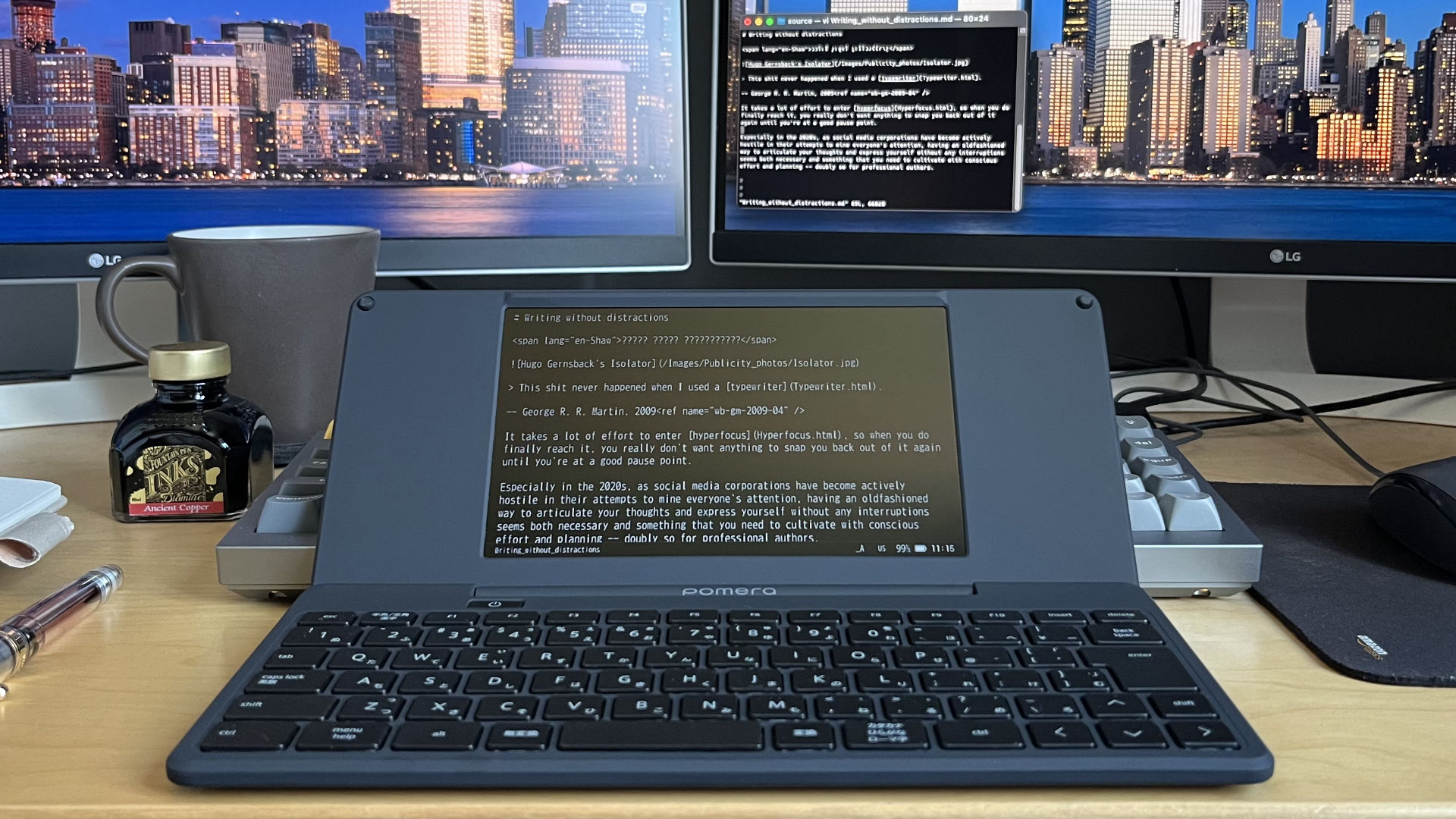
Pomera DM250
The Pomera DM250 is a model in the Pomera series of portable text editors (the twenty-first century's answer to 1980s hardware word processors, also known as a writer deck or digital typewriter). It's a small, purpose-built computer made by Japanese stationery company King Jim.
There's a more expensive English language version, the DM250US, but the original Japanese version can easily be set to use English anyway. (See how in the tips section below.) Admittedly, you have to get used to the Japanese version's small right-hand shift button, but that's not necessarily any harder than getting used to the English version's up arrow being on the bottom row of keys.
Overview
The device is small and light, perfect for writing while travelling. It has a small yet serviceable screen, and a quite comfortable if shallow laptop style keyboard.
It's purpose-built, using custom software designed from the ground up for writing without distractions.
It reads and writes plain text files, the least proprietary and most ubiquitous file format there is. If it wasn't for the hardwired internal battery, it probably wouldn't become obsolete even after a few decades.
It can communicate with the outside world by writing to SD cards, a very popular medium indeed. Should you prefer, you can also mount it on a fully fledged computer as a USB drive, which also charges it. There are other options too, which I can't imagine anyone needing. If all else fails (which it won't), it can even display each of your files as a series of QR codes. In short, getting data onto and back off of it isn't a problem.
Software
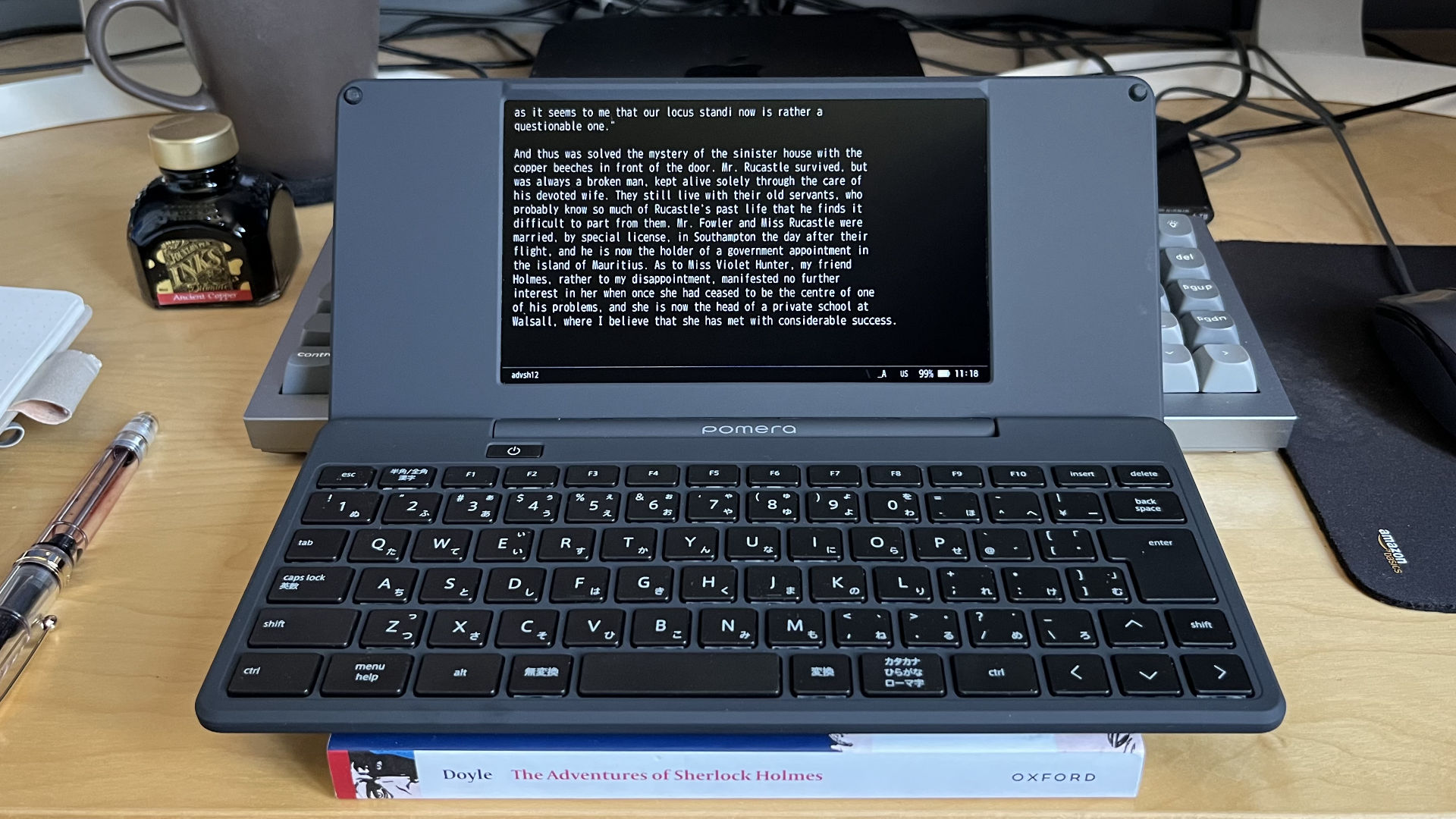
An elementary size comparison
It's more of a text editor than a word processor, in that documents are strictly plain text, with no formatting whatsoever. If you want to signify that a phrase is to be underlined, put underscores around it. Italics and bold can be suggested with asterisks. As with an oldfashioned typewriter, it's up to the reader to interpret. Long lines are soft-wrapped, albeit a little awkwardly in places.
Each file can be up to about 600 KB long.[2][3] This is plenty for plain text files, especially English-language ones that only use one byte per UTF-8 character. In terms more familiar to writers than programmers, each file should happily contain up to about 100,000 or so English words. It's certainly enough to fit all twelve short stories collected in The Adventures of Sherlock Holmes,[4] which seems fitting bearing in mind it's a similar physical size to the book. You can surely forgive the diminutive device for having to split up anything longer into multiple files.
An SDHC card, remember, can store up to 32 GB of files. Theoretically, that's over 50,000 files containing 100,000 words each. I for one don't have the time to test this theoretical limit. Grouping aside, investing in a second SDHC card seems scarcely warranted.
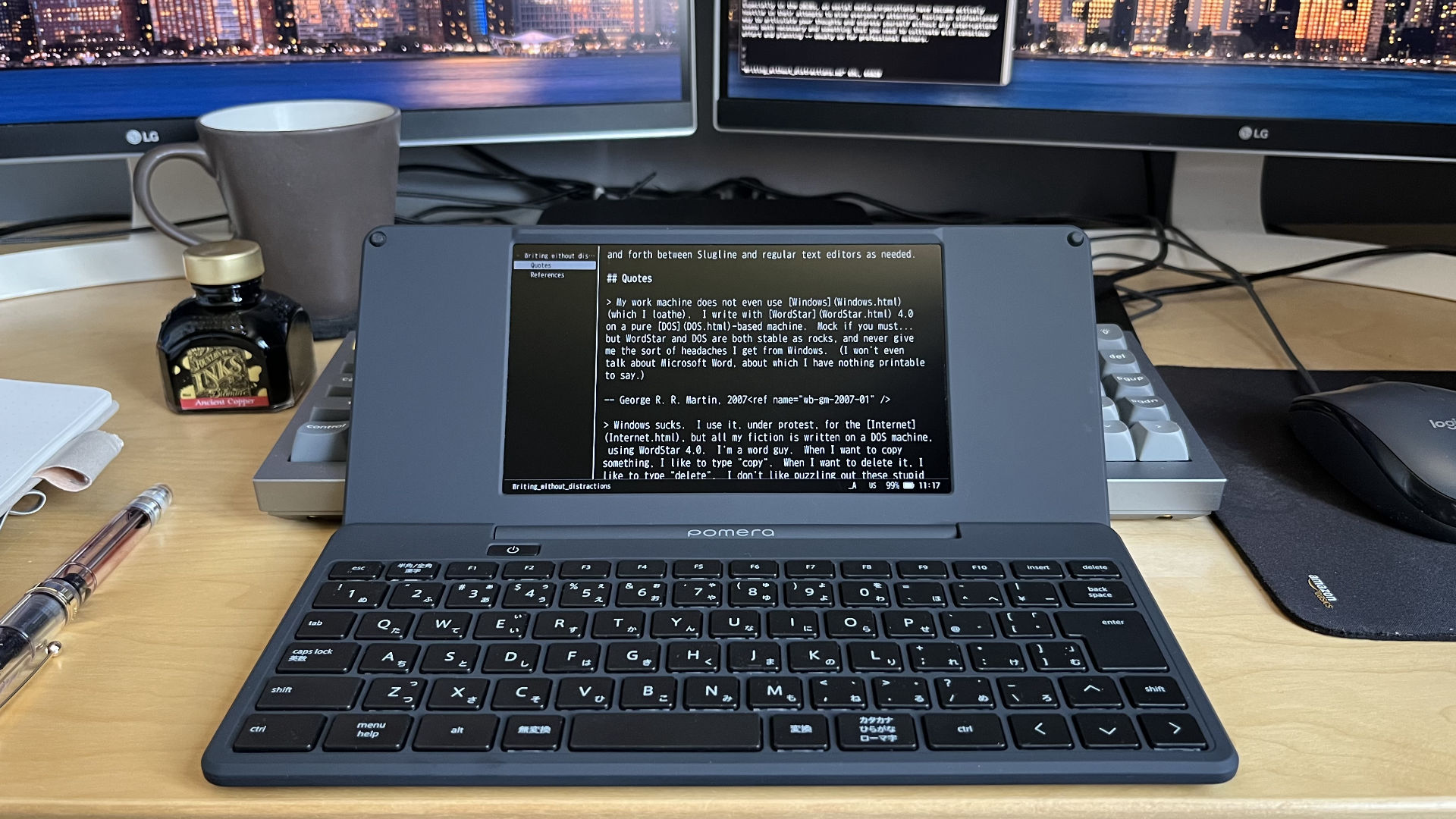
Outline mode, listing headings
There's an optional outline view, which lists the headings on the left, letting you rearrange sections at a glance.[3] By default, headings are any lines that start with a dot, but this can be easily changed to Markdown style headings, namely lines starting with a #. This makes it a slight shame that it only recognises files with the .txt extension, not .md as well. Still, there's certainly bigger inconveniences in life than having to rename the occasional file.
The partition and comparison options split the screen down the middle, showing side-by-side two parts of the same file, or two different files, respectively. Alt+tab moves between them as you'd expect, and you can edit both files. This is one of the more advanced features that usually only programmers demand of their text editors. Similarly, rather surprisingly for a consumer device, it supports searching with regular expressions, another advanced feature that probably only programmers will appreciate.
There's also a calendar, which lets you enter information for each day. This is presumably intended for noting upcoming appointments, rather than journaling, although you could certainly use it for either. (Each entry can be up to 32 KB, or about 5,000 words.) Behind the scenes, this simply makes a separate text file for each relevant day. You can't copy these onto an SD card, but you can copy them over USB just as easily as any other files. Personally I'd ignore the calendar, and focus on what the DM250's best at: being a text editor.
Small is beautiful
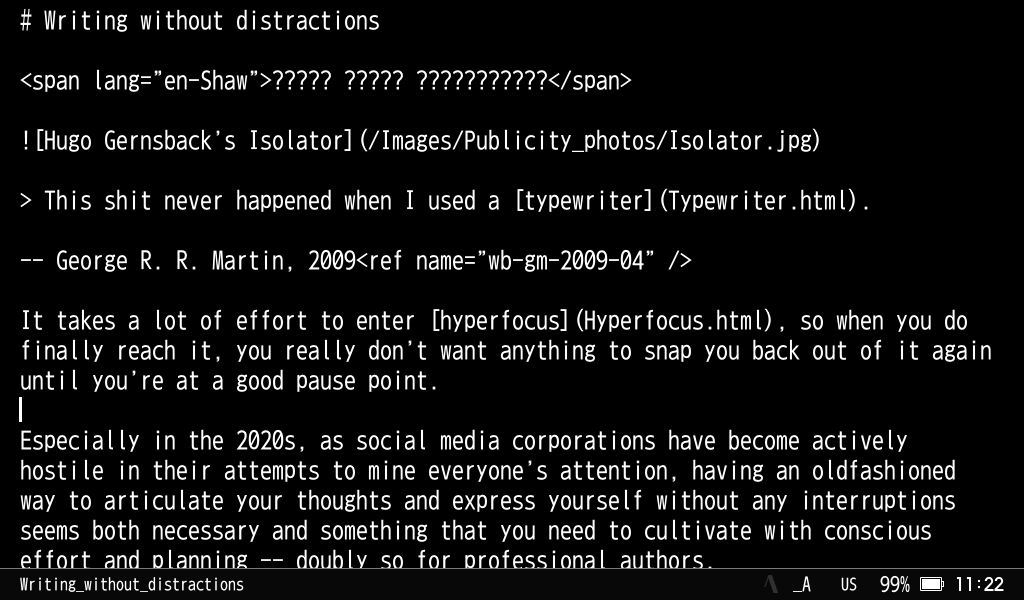
The default font
At 7″, the screen's small, on a par with how big OS X's Terminal.app appears on my desktop's screens by default. Then again, you'll likely keep it closer to your eyes. The fonts are antialiased, and although the descenders are slightly truncated, everything's still quite readable. You can change the font size as needed, between 16, 20, 24, 32, 40, and 48 pixels tall.
You can also adjust the line spacing, between 0, ¼, ½, ¾, and 1 line tall, and choose between a serif or sans-serif font. Not per document, of course — these are plain text files, after all — but as a general preference. The defaults, a sans-serif font 24 pixels tall with ¼ spaced lines, are quite sensible. I only tried changing them for a few seconds before hurriedly changing them back again. Using these default settings, the screen shows about 82×18.8 or so characters of your document, which is reasonably close to the 80×24 characters of a terminal window, or 80×25 of good old DOS.
At about 620 grams and 26×12×2 cm,[2][3] it's coming with you. It uses USB-C for charging as well as transferring data, so you don't need to bring yet another mains adapter with you on long journeys, either... and given its battery life, your trip would have to be longer than a few days to warrant even bringing a cable.
Summary
Perhaps the biggest issue will be having to use such a simple text editor, rather than one you're already more familiar with... or, for the thick of finger, the slightly fiddly laptop-style keyboard. Personally, I'm still adjusting to the Japanese layout's small shift key, still pressing the up key by mistake every now and then. (I had a similar period of adjustment when I switched from an ISO to ANSI keyboard on my desktop machine.)
For me, at least, the pros outweight the cons: it's conveniently compact; it's easy to get files on it, edit them, write more files, and get them all off it again once you're back home; and I can turn it on and start writing, without getting distracted by reminders of all the tasks I have to do.
I can only really imagine a few improvements. One would be a full-width screen, although as my personal preference is having a familiar 80 characters to the line, for me this would entail selecting a larger font, with less lines being visible, making it a double-edged sword. Another would be support for more languages, including dictionaries. I'm not sure how feasible either of these would be.
Three small improvements would undoubtedly be much simpler to implement: adding the usual shortcuts for writing accented characters; not wrapping lines after mid-word apostrophes or full stops serving as part of an ellipsis; and allowing more filename extensions that are actually just plain text in disguise, such as Markdown's .md and Fountain's .fountain. Showing non-ASCII characters at the regular width instead of double-width would also help. The most immediately useful change would be a less reflective screen.
Alternatives are scarce. If you're handy with computers, you can theoretically set up a more familiar writing environment with a repurposed subnotebook or netbook. Alas, an old subnotebook such as a Quaderno PT-XT-20 has no easy means of getting files on and off it anymore. The corresponding ecosystem of hardware and software has long since moved on. A slightly less old netbook such as an Eee PC fares little better, inevitably having no charge left in its proprietary battery. As much as I love vi, and a few authors love WordStar, it's simply not worth trying to resuscitate an old portable general-purpose PC. There are also writer decks, but most seem more gimmicky than useful.
The DM250 is ready to go, out of the box. Nothing needs installing. It only takes a minute or two to initially set it to use English, which you only have to do once. It boots up in about five seconds, and shuts down in about five seconds too, by virtue of opening and closing it (making the on-off button seemingly redundant). Being current, you can buy it brand new, its internal battery full of charge. It uses SD cards and a USB-C port, which should hopefully both be popular for a good while yet, making it very easy to get text files on and off it. In short, it's very much the path of least resistance.
If you want a portable, distraction-free device to write on, this is the one I would go for (and did). Consider the problem solved.
Tips
To set the DM250 to English, in the menu, simply go into rightmost option 設定 (settings), then Language, and select English. You can then choose to stick with the JIS layout, or switch to a US layout.[2]
As a touch typist, I prefer the US layout. Every key does what I expect it to do from muscle memory. If you'd rather look than feel where each key is, you might prefer to keep it in the JIS layout, in which even the punctuation matches what's printed on the keys. (A sticker sheet is provided, to show where the US layout's punctuation is. Hopefully anyone who needs it will memorise it before wearing it out.)
If the text you enter is underlined, it's still being translated into Japanese. Note the Japanese character in the status bar, just to the left of where it says US. Hold down the alt key, and tap the key to the right of escape. See how the status bar now says _A. Now you're entering English as plain ASCII!
Cheatsheet
Useful commands include, amongst others:[3]
Navigation
| Action | Shortcut |
|---|---|
| Up to start of file | Ctrl+alt+↑ |
| Up a page | Alt+↑ |
| Back to start of line | Alt+← |
| Back one word (ish) | Ctrl+← |
| Forward one word (ish) | Ctrl+→ |
| Forward to end of line | Alt+→ |
| Down a page | Alt+↓ |
| Down to end of file | Ctrl+alt+↓ |
Undo and redo
| Action | Shortcut |
|---|---|
| Undo | Ctrl+z |
| Redo | Ctrl+Z or Ctrl+y |
References
- "Pomera DM250 Tinkering" Joshua Stein
- "Pomera DM250 owner's manual" King Jim, Apr 2022, pp. 30, 32, 133—134, 158
- "Pomera DM250US owner's manual" King Jim, Apr 2024, pp. 32, 86—88, 121—123, 129
- The Adventures of Sherlock Holmes Arthur Conan Doyle, 1892
Further reading
Reviews
- "Retro Writing 15 — Pomera DM250 and My Current Writing Setup" Mateusz Urbanowicz, Aug 2023
- "I Get All My Writing Done on This Tiny Typewriter" Jordan McMahon, The Strategist, Aug 2025
- "Pomera DM250 Review — A Distraction-Free Writing Device Authors Will Love" Spencer Spalding, SFwordsmith, Oct 2025
Downloads
Documentation
- "Pomera DM250 owner's manual" King Jim, Apr 2022
- "Pomera DM250US owner's manual" King Jim, Apr 2024
Hardware word processors: Pomera DM250
Writer decks: Pomera DM250